Can a Magic Keyboard play mechanical-style sounds?
Yes. With your Magic Keyboard connected to a Mac, a keyboard sound app can play audio in response to your typing. Klakk’s website Mac edition offers 14 sound packs and a three-day trial from first app launch. The generated sound comes from your Mac’s selected audio output; the keyboard’s key travel, feel and physical noise stay the same.
This guide is written by Klakk’s developer, Levin, with AI assistance. The original product details were checked on October 9, 2026. We checked the 1.4.2 download on November 7, 2026 (UTC) and verified the current release on November 21, 2026 (UTC). Use the trial to evaluate your own keyboard and audio setup; this is not an independent hardware review or a measured latency comparison.
Preview the sounds in your browser · Choose your Mac installation channel
Check the keyboard connection and Mac requirements
First check that the Magic Keyboard types normally in a Mac app with Klakk closed. If text does not appear, resolve the keyboard connection before troubleshooting sound. Apple’s Magic Keyboard guide explains pairing and the different keyboard variants.
Klakk’s website Mac app requires macOS 14 or later and supports Apple silicon and Intel Macs. Your particular keyboard can have additional requirements: Apple’s 2024 USB-C Magic Keyboard with Touch ID lists an Apple silicon Mac with macOS 15.1 or later. Check the requirements for your keyboard model separately from the app’s minimum.
These instructions cover a Magic Keyboard connected to a Mac. A keyboard case attached to an iPad uses a different operating system; this Mac installation guide does not apply to it.
If you share that keyboard with another device, distinguish the app receiving input from the screen displaying it. Our keyboard-sharing and screen-extension comparison explains the purchase boundary between another device’s own apps and a Mac window shown there, without promising shared-input or audio-route compatibility.
Install the edition you intend to use
Open the official download page and choose an installation channel.
- Website Mac edition: Open the DMG, move Klakk to Applications and launch that installed copy. The current download is 1.4.3, build 25; its trial starts on first launch and lasts three days.
- Mac App Store edition: Install through Apple’s store and launch that copy. Use the purchase action inside that edition.
| Edition | Purchase after the trial |
|---|---|
| Website Mac | US$6.99 once for Mac through Creem, plus applicable tax. |
| Mac App Store | Apple’s displayed price. Its licence is separate from the website edition. |
Keep track of which copy you open when reviewing permissions or restoring a purchase. Windows also needs its own licence. The version and build above describe the website Mac edition; they are not a promise that Apple’s listing uses the same release number.
For the full DMG walkthrough, use the Mac installation guide. If macOS shows a security warning, read it and check the official distribution information rather than disabling security protections. Apple explains what those alerts mean.
Allow Input Monitoring and check the first sound
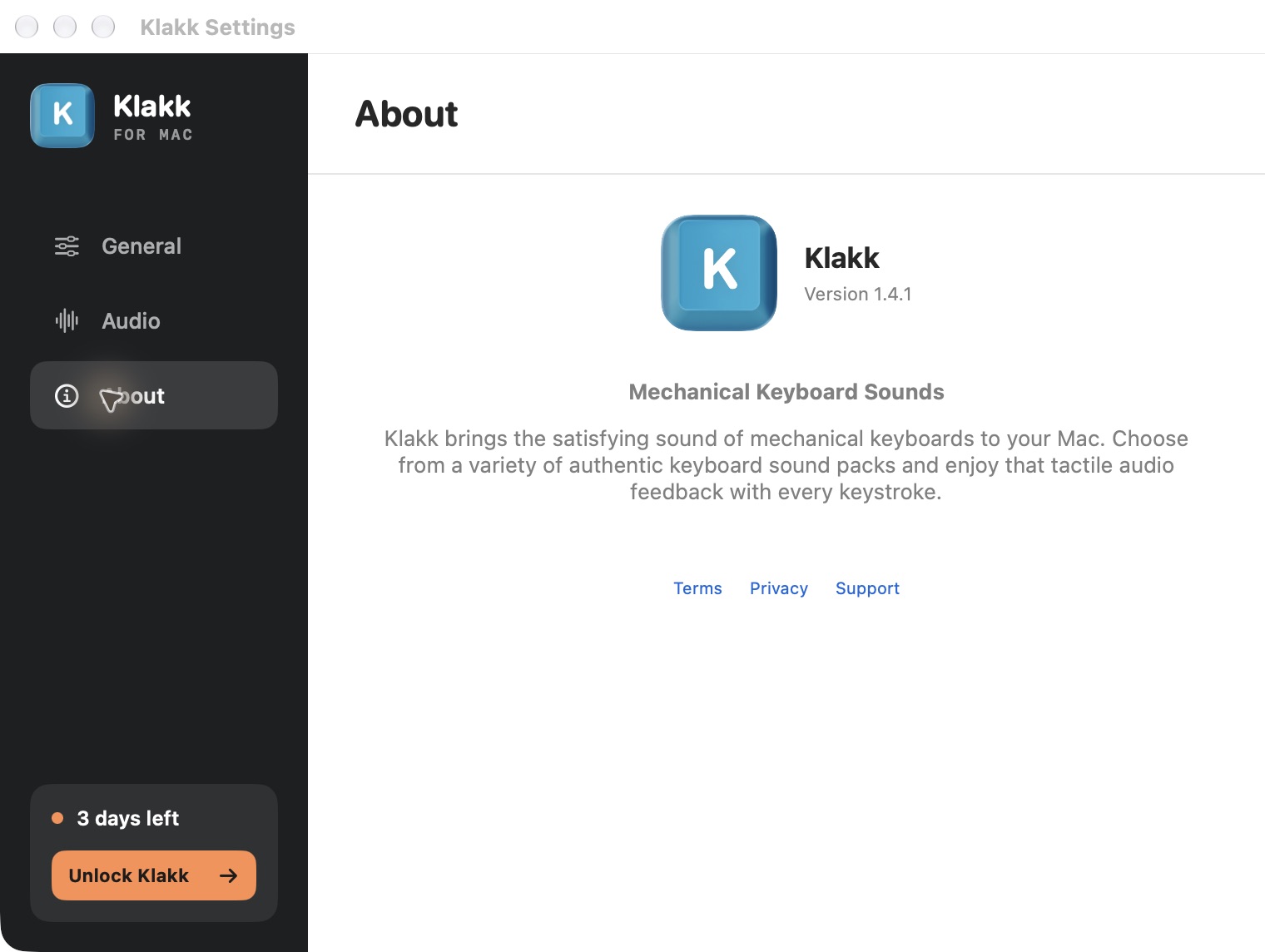
- Open Klakk from Applications.
- In System Settings → Privacy & Security → Input Monitoring, enable the entry for that installed copy. Follow any authentication or app restart prompt from macOS.
- Enable playback in Klakk, choose a sound pack and set an audible, comfortable volume.
- Choose Output Device in Klakk's audio settings. With System Default, also check System Settings → Sound → Output.
- Type a short, harmless sentence with your Magic Keyboard in an app you normally use. Try edits and shortcuts as well as ordinary letters.
Apple’s Input Monitoring guide describes access to input while other apps are in use. The permission is broader than just noticing a timestamp. Klakk’s current website Mac listener uses physical key codes and press/release events to choose sounds. Keyboard playback does not require Accessibility or Full Disk Access.
Klakk does not save or upload the text you type or upload raw input events. Usage and licensing communication exists separately; read the privacy policy before granting access. To withdraw access later, turn off the app’s Input Monitoring entry.
Choose an output and compare the sounds
The browser preview lets you compare samples while using that page. The installed app responds while you type in your Mac apps. Try a few packs at a similar volume, then keep the one you enjoy in your normal work. There is no universally best pack or required thirty-minute test.
Headphones can contain the generated audio, but they do not quiet your actual key taps or desk vibration. Speakers add sound to the room. Pause playback during calls or system-audio sharing when you do not want the extra sound included.
If playback feels delayed, compare the same pack using built-in speakers or wired headphones and your usual wireless output. This can help identify a difference in your setup; it is not a total app latency benchmark. The Magic Keyboard’s Bluetooth input connection and a Bluetooth headphone output are separate parts of the path.
If the Magic Keyboard types but Klakk is silent
Check these before downloading a second copy:
- Klakk is running, playback is enabled and a pack is selected.
- Klakk’s volume and the chosen output are audible and unmuted.
- Input Monitoring is enabled for the copy you opened; restart it if requested.
- The trial is active, or a licence is restored for the installed edition.
With System Default, use Apple’s output-device steps. For more detail, follow the first-sound troubleshooting guide or the Input Monitoring guide.
If the built-in keyboard works but the Magic Keyboard does not, record which keyboard, connection, macOS version, Klakk edition and ordinary typing step failed. Send those details through support. Do not send the text you typed, passwords or payment information. This guide does not claim an exhaustive test of every Magic Keyboard model or special key.
Decide whether to keep it
Use the website edition’s three days to check playback, comfortable volume and easy stopping in your normal apps. Purchase through the installed edition if you want to continue. The website Mac edition is US$6.99 once for Mac, plus applicable tax; it does not include the App Store or Windows licence.
You can quit Klakk or disable playback to stop the added sounds. If you want different key travel, resistance or physical noise, those are hardware decisions; a sound pack cannot change them.
Choose your Mac download · Hear the sound samples · Read the official 1.4.3 release